Git 101 - Basics
1. What Is Git?
Before we start learning Git, we first need to understand what Git is and what it does.
Git is a Version Control System (VCS). It records how files change over time, allowing us to view previous versions, restore older versions, and collaborate with other people. Since this is the beginning of the tutorial, we will not cover collaboration yet. We will discuss it in later chapters.
1.1 What Is Version Control?
Suppose you are writing a program.
At the beginning, your project might be called:
project
After making some changes, you are worried that the new version might break, so you make a copy:
project_v2
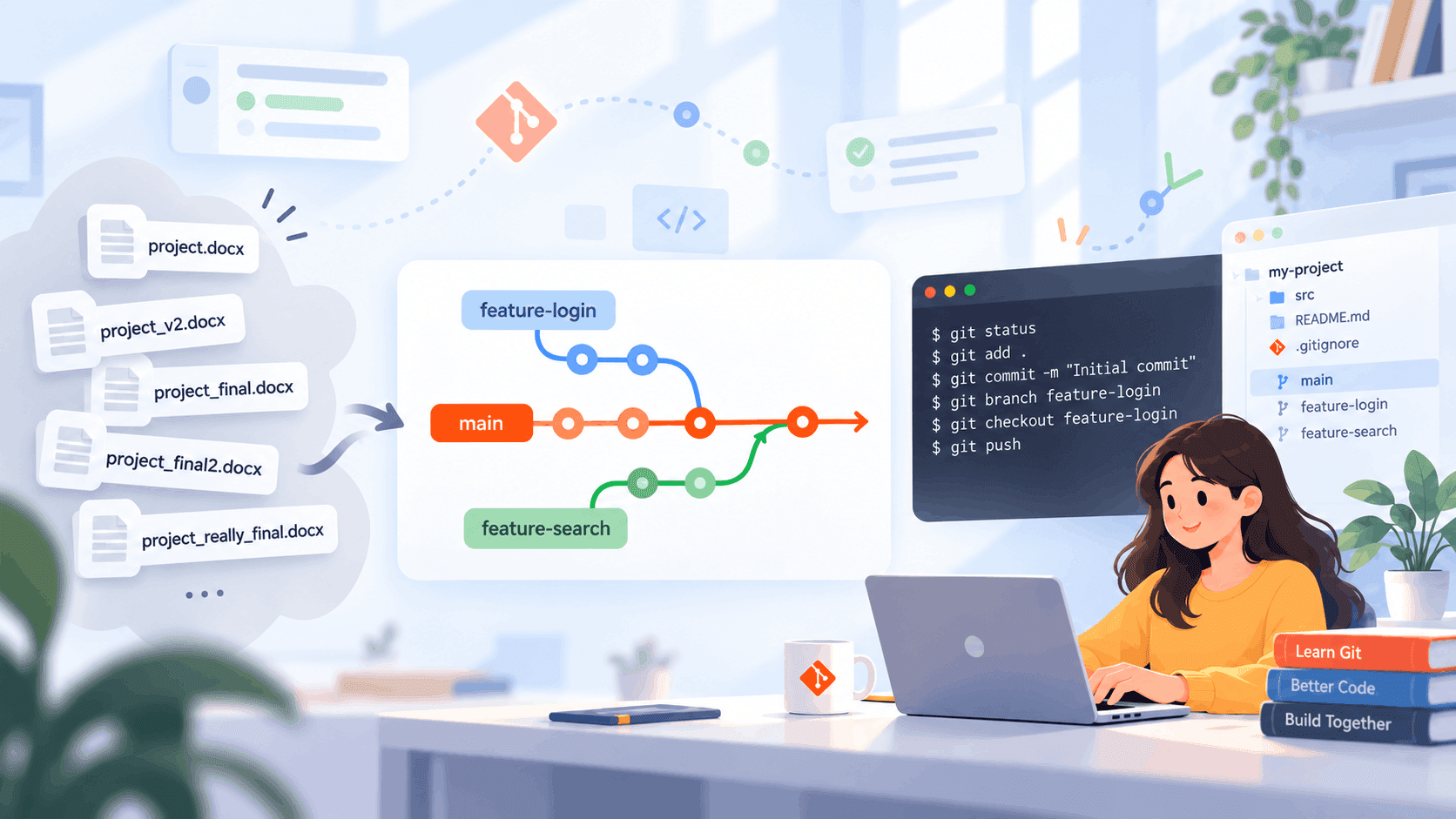
After a while, you may end up with:
project
project_v2
project_final
project_final_v2
project_final_really_final
Although this approach appears to preserve previous versions, it quickly creates several problems:
- You do not know exactly what changed between versions
- More and more files are created, taking up unnecessary space
- It becomes difficult to tell which version is the latest
- When working with other people, files can easily overwrite each other
- Restoring only one specific change becomes very inconvenient
Git was designed to solve these problems.
When using Git, we usually keep only one copy of the project files, while Git helps us record every important change.
For example:
Initial project
      ↓
Add login page
      ↓
Fix login bug
      ↓
Add user profile
Each of these points can be saved by Git.
If we later discover that:
Add user profile
introduced a serious problem, we can still inspect or restore an earlier version.
If you are not a professional developer but want to try vibe coding, learning how to use Git is especially important:
- AI hallucinations may cause incorrect changes
- You may accidentally modify something and later forget what changed
- AI may make a large number of changes, but you may want to return to an earlier state
Although most modern agentic coding tools provide a one-click Undo feature, there is still no guarantee that every action will be free from unexpected side effects. Using Git properly may save you from an approaching deadline and a crashing program — or at least help you get it running again.
1.2 What Does Git Record?
Git mainly records changes made to a project.
For example, suppose a file originally contains:
Hello
Later, it is changed to:
Hello Git
Git can identify the difference:
-Hello
+Hello Git
In other words, Git does not simply save many copies of the same files. Instead, it helps us manage changes between different versions of a project.
These saved versions are usually called:
Commits
You can think of a commit as:
A save point for the current state of your project.
For example:
Commit 1
Create project

Commit 2
Add login page

Commit 3
Fix login bug
We will learn how to create commits in detail later.
1.3 What Is the Relationship Between Git and GitHub?
Simply put, Git and GitHub are not the same thing.
Git is a version control tool created by Linus Torvalds, the creator of Linux, in 2005. It was originally developed to manage large open-source projects such as the Linux kernel more efficiently.
GitHub is a Git repository hosting platform launched in 2008. It is built around Git and provides features such as code hosting, Pull Requests, Issues, and team collaboration.
You can use Git normally on your own computer even without GitHub.
Other platforms similar to GitHub include:
- GitLab
- Bitbucket
- Azure DevOps
1.4 Some Common Git Terms
Repository (Repo)
When learning Git, you will frequently see the word Repository, often shortened to Repo.
A Git repository is a project that is managed by Git. In most cases, you can think of it as the project folder containing your code, although this is not a completely precise definition.
For example:
my-project/
├── index.html
├── style.css
├── script.js
└── .git/
The .git/ directory is a special folder used by Git to store version history and repository information.
Commit
A commit is a recorded version of the project. You can think of it as a “save point”.
Commit A
   ↓
Commit B
   ↓
Commit C
If you need to undo the changes introduced by a particular commit, you can use git revert. It creates a new commit that reverses those changes without deleting the original commit history, so Commit C remains available to inspect. Restoring a historical version and undoing a commit are different operations. We will cover them in a later chapter.
Branch
A Branch allows us to create an independent line of development from the current project and make changes without immediately affecting other branches.
For example:
main
  │
  ├── feature-login
  │
  └── feature-search
feature-login can be used to develop the login feature, while feature-search can be used to develop the search feature.
Changes made in the two branches do not automatically affect each other, and the main branch also remains unchanged.
A branch's changes only enter another branch when we explicitly perform a merge.
The main purpose of a branch is to keep different development tasks temporarily independent.
For now, you can think of a branch as:
An independent development path where you can safely modify code without immediately affecting other branches.
Remote
A Remote refers to a remote Git repository, such as a repository hosted on GitHub.
Local Repository
      ↕
Remote Repository
2. Command Line Basics
Because the Git installation process varies depending on the operating system and software version, this tutorial will not cover Git installation. Instead, we will introduce a few basic commands.
Git is often used through the command line, but you do not need any prior experience with Terminal, PowerShell, or Linux commands to follow along.
The Command Line, GUI, and HCI
Early human–computer interaction (HCI) did not happen directly through a screen. Users initially submitted programs using punched cards, paper tape, and similar methods. The computer processed the program and then produced the results. This kind of interaction offered almost no real-time feedback.
During the 1960s and 1970s, as terminals and time-sharing systems developed, the command-line interface (CLI) gradually became the dominant way to interact with computers. Users entered commands through a keyboard.
cd Documents
ls
mkdir project
The computer read these text commands and returned results. Compared with punched cards, the CLI was a major step forward because users could interact directly with the computer. However, the command line had an obvious drawback: users needed to remember many commands, options, and syntax rules.
During the 1970s and 1980s, researchers began exploring more intuitive ways to interact with computers. Research at Xerox PARC was particularly influential, developing concepts such as windows, icons, menus, and mouse-based interaction. Later, systems such as the Apple Macintosh and Microsoft Windows brought the graphical user interface (GUI) to the mass market. It eventually became the main form of human–computer interaction we use today.
Even so, some complex operations still require the command line. Compared with a graphical interface, it can describe operations more precisely and is better suited to automation, batch processing, and combining multiple tools. While people often interact with computers through a GUI, AI agents commonly use the command line because they are generally better at processing text than images.
2.1 What Is the Command Line?
The command line is a way to operate your computer by typing text commands.
When you open Terminal on macOS or Linux, you may see a prompt such as user@computer ~ %. On Windows, you may use PowerShell instead. This is where we will type Git commands later.
2.2 Check Your Current Location: pwd
pwd stands for Print Working Directory and shows the folder you are currently in. Run:
pwd
The output might be /Users/alex, meaning you are in that user's home directory.
On macOS, Terminal normally opens in your home directory by default. This directory can also be written as ~. Your starting location may vary depending on your Terminal settings, so use pwd to check.
2.3 View Files: ls
Use ls to view the files and folders in the current directory. You can think of it as the command-line equivalent of opening a folder and looking at its contents.
ls
For example, the output might be:
Desktop
Documents
Downloads
Projects
2.4 Enter a Folder: cd
cd stands for Change Directory and changes the folder you are currently working in. For example, enter the Documents folder with:
cd Documents
If it contains a Projects folder, enter that next:
cd Projects
You are now in Documents/Projects. Starting from the original directory, you can also enter both levels at once:
cd Documents/Projects
Go Back to the Parent Directory
Use cd .. to go back one level. For example, if you are in Documents/Projects, run:
cd ..
This returns you to Documents. Here, .. means the parent directory.
2.5 Create a Folder: mkdir
mkdir stands for Make Directory. To create a folder called git-tutorial, run:
mkdir git-tutorial
Then enter the new folder:
cd git-tutorial
2.6 Clear the Terminal: clear
If there is too much text in the Terminal, use clear to clear the current screen:
clear
This does not delete any files or remove previously executed commands from the command history.
2.7 Exercise
Create a folder called hello_world inside the Desktop directory, then enter that folder.
The answer will be provided in the next chapter.
3. Check Your Understanding: Git Basics Quiz
Five questions, one at a time. Select an answer to continue automatically. See your score and explanations at the end.
Question 1 / 5